

November 21, 2025: This is the pre-Thanksgiving edition. The big issue I faced this week was resolving the problems with my AllStarLink node, my SIP phone, and Hams Over IP. No issue next week!
A question for subscribers: more, or less?
How about a simple poll?
I feel like these newsletters get so long they turn off many subscribers, so I’d like to hear your preference. Here are some choices:
-
A shorter newsletter that focuses on one big topic.
-
A shorter newsletter with one big topic and links to the rest of the things I’m doing.
-
Keep the newsletter long, just as it is.
-
Your suggestions?
With that, I hope you’ll take a few moments to respond to the poll to help guide and shape the future of the Random Wire newsletter!
That fourth bullet item? Please post your suggestions as a comment or send me an email. And thank you for your help!

No Random Wire newsletter next week
There will be no Random Wire issue next week. We will be bringing my wife home from the skilled nursing facility, and it’s also the Thanksgiving holiday in the United States. Translation: I’m going to be very busy. Time for writing will be too limited to guarantee good content for you, so I’ll take a week off from the newsletter.
Despite the hard challenges we have faced due to my wife’s medical condition, I am grateful for much. I hope you find many things to be thankful for.
No Part 2 on m1ke WLAN IP transceiver this week
I spent so much time fixing my Hams Over IP and SIP phone problem this week (see the next section for the explanation), the next part of the review of the SharkRF m1ke WLAN IP transceiver will be picked up in the next issue of the Random Wire newsletter.
I carry the m1ke in my computer bag that goes with me to the skilled nursing facility every day. I’m using it daily. I like it. Maybe that’s enough for now!
Special thanks to WH6AV
Sometimes, even those of us who kinda sorta know what we’re doing screw things up and need to be rescued.
AllStarLink can be complicated
This is about the connection between my AllStarLink node and a SIP desk phone, using Hams Over IP as a way to link the two. It highlights one of the pain points of AllStarLink: complicated configuration settings that are placed in several different files.
Please don’t mistake this to mean I don’t like ASL. Indeed, it is one of my favorite systems for amateur communications. I love the great audio quality and flexibility of ASL. However, it can be difficult to configure and to fix. A common frustration I hear from ASL users (and potential users) is that it is too complicated for them to figure out. I’m not new to ASL, but configuration issues also bit me, as I explain in the situation described below.
(I’ve previously wondered why there aren’t pre-made virtual machines for AllStarLink nodes. That might make it much easier for some folks to enter the world of ASL with a minimum of hassle and confusion. The difficulty of configuring ASL is, to me, one of the major barriers to entry into this space.)
Now for the situation I encountered.
Connection between my ASL node and SIP phone broke
When I physically moved my AllStarLink node 588418 from Portland, Oregon to Grapeview, Washington, the node moved from my home network to my sister’s network. (Let’s ignore the fact that I set up her network, with a router I really, really don’t like!) That meant that the node’s IP address changed, so I needed to change the IP addresses in various configuration files. It also meant that I had to put the correct port forward in place for my node to work on my sister’s network.
Now let’s add in the complication that my second Polycom desk phone (one is in Portland and one is in Grapeview) has a Hams Over IP extension on it. In addition, the HOIP folks were kind enough to give me an RF link (see the HOIP configuration guide for RF links) so that I could connect my desk phone to my AllStarLink node number 588418. This worked great in Portland. It did not work for me in Grapeview. Despite hours spent on this problem, I could not figure it out.
Router locked up so I reset it
Along the way, that router I so dislike stopped working. Eventually, I hit the reset button to start over fresh and then realized my backup configuration was on my old laptop in Portland. Oops. It took me a few hours to get the router up and running correctly again. I remembered most of the settings and figured out the rest. Then I reset the port forwards for the AllStar node and figured that would do the trick.
Nope. Still not working right.
Then IP addresses changed again
Resetting the router also changed the IP address of the node…again. By this time I was tired and grumpy and failed to notice that I had used the old IP address for the port forwards after I reset the router. I know I would have eventually figured this out but there was another issue where I had tried to configure the RF Link to use a private node number instead of my public number. I never got that to work right so I commented out the lines in a couple of config files and went about my business, eventually forgetting that I had tried to walk the private node path. Apparently, I didn’t actually comment out a couple of lines, so my ASL node was confused when I was trying to make the connection to the SIP phone.
I asked for help
Of course, I didn’t know that was one of the problems until finally, when frustration overwhelmed my patience, I reached out to HOIP support for help. (I prefer to first try to fix problems myself.) In swooped Gescio “Jesse” WH6AV to save the day. We had a couple of sessions over the phone through my HOIP extension 100676 through the Groundwire softphone app on my cell phone. Finally, Jesse asked to remote into my computer. I opened a terminal window to the node, logged into the router, and approved his AnyDesk request.
What followed was really a bit magical. I saw Jesse running commands in the terminal that I’ve never even heard of. He fixed the port forward in the router (yep, it was an old port number, not the new/correct one). He fixed the IP address in the router and also found a few places in the ASL node where the address was wrong. He fixed my private node issue. Eventually (this was at least an hour of intense work by Jesse) we tested and the RF Link worked. I can finally connect to my ASL node 588418 through the desk phone and through the Groundwire app because of Jesse’s selfless work to help me.
I watched the magic happen
I felt pretty clueless (and occasionally embarrassed as I saw my mistakes being corrected in real time) as I watched the magic happen. I could follow along with some of it. Jesse couldn’t hear me but I was talking to the screen as he was making changes. I was nodding my head and anticipating some of his changes, but others had me staring at the screen and wondering how he knew to do those things. It was pretty amazing.
I think this embodies the spirit of ham radio: hams helping other hams. I’ve donated some money to HOIP in appreciation of Jesse’s great help. (If you use HOIP, they are actively seeking support through a GoFundMe fundraiser.)
I don’t think I would have figured this out
Would I have figured it out on my own? I don’t think so. There were too many variables that were “off” for me to have a clear picture of what needed to be fixed. In fact, what was in my mind before I reached out for support help was to simply start over with a fresh, clean install of AllStarLink. Jesse figured it out. So this is a special thank you to Jesse WH6AV, with my deep appreciation. Aloha, Jesse!
I’m using the ASL node while I type this
I write this while in the skilled nursing facility, running my AllStarLink node 588418 (located a 90-minute drive away) remotely over a Tailscale connection, and connected to it through Hams Over IP on the Groundwire softphone app. AllScan running on node 588418 is how I connect to other nodes when I’m remote. (I like AllScan a lot.)
AllScan is a free and open-source web app that provides Favorites Management features, AllStarLink Stats integration, and connection monitoring and control functions.
With inexpensive noise canceling earbuds in, the many sounds in the nursing facility disappear and I can hear the QSOs perfectly. The audio quality is also better than what I experience with Droidstar. The conversation this morning? I’m listening to the W6EK Coffee Break net held by the Sierra Foothills Amateur Radio Club.
The inexpensive earbuds I’m using are awfully good (TechRadar likes the JLab Go Pods) for just $25:
Example: connecting to ARRL Audio News
When I connected to the ARRL Audio News over my node with AllScan, it looked like this:
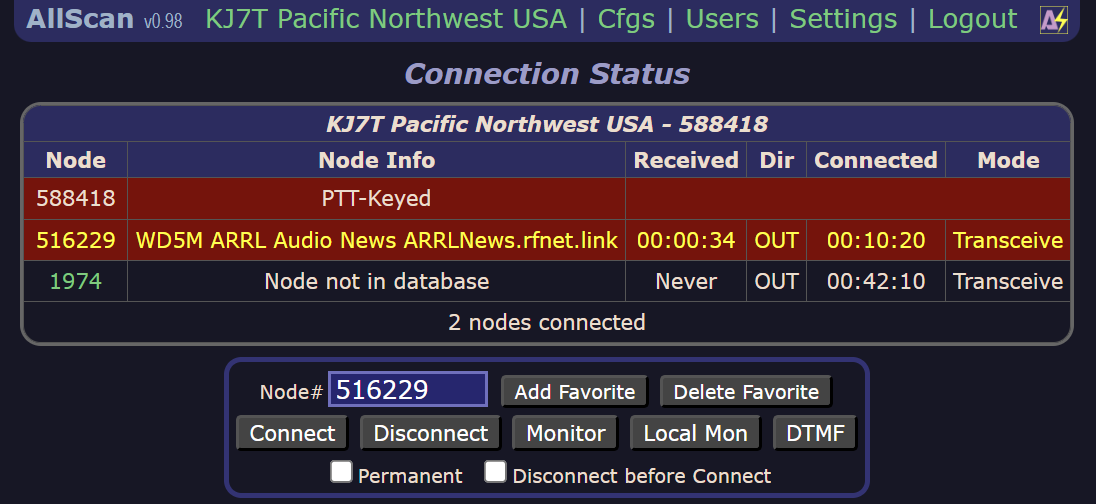
First, I dialed my RF link on the Groundwire app to connect to node 588418. Then I used AllScan to connect to my private node 1974. And then, to connect to another node, I had to uncheck the “Disconnect before Connect” box. Once that was unchecked, I typed in 516229 in AllScan and connected. Perfect.
This is a little more cumbersome than I would like while I’m mobile, but using a private node is recommended by HOIP:
It is recommended, but not required, that you configure a private node on your AllStar Node when configuring the node to have the phone connection tie to. This will allow you to disconnect the phone connection from your AllStar node in case there is a problem.
And then the system broke again!
UPDATE: I got home the next day and the system was again not working. It turned out the router assigned a new IP address to the AllStarLink node while I was away. I monkeyed with that for a while and broke the system again, and finally decided I would reserve the correct IP address for the node in the router settings so it wouldn’t change the IP in the future. But then I discovered that this particular model of Netgear router was broken with respect to saving the MAC address when reserving an IP address. I finally found a way to get it done but I had to resort to using the console editor to do it. The workaround worked, even if it was awkward to accomplish.
And finally, it all works again. Whew.
I’m using wired radio, and it’s good
What do I mean by wired radio? To me, it is radio communications that focuses on networked devices instead of comms over radio frequencies that are available to licensed radio amateurs. I’ll start with that pseudo definition and see how it fits as I write my thoughts.
As I begin this issue of the Random Wire newsletter, I am sitting in my wife’s room in a skilled nursing facility in Tacoma, with my laptop resting on my legs, and using Droidstar to connect to my AllStar “node in the cloud” in Seattle (node 57945). For audio, I’m using my DeWALT neckband earbuds:
These earbuds also have speakers in the neckband so I can choose to have audio without putting the buds in my ears. That’s a nice option that I enjoy when I’m moving around because the location of the speakers, relative to my ears, doesn’t change. That makes the audio consistently clear. These aren’t the most compact earband-style earbuds but they are durable and sound great.
Anyway, back to listening on Droidstar. The morning “Coffee Break net” is on in California through the W6EK repeater which is also carried on AllStar node 51018.
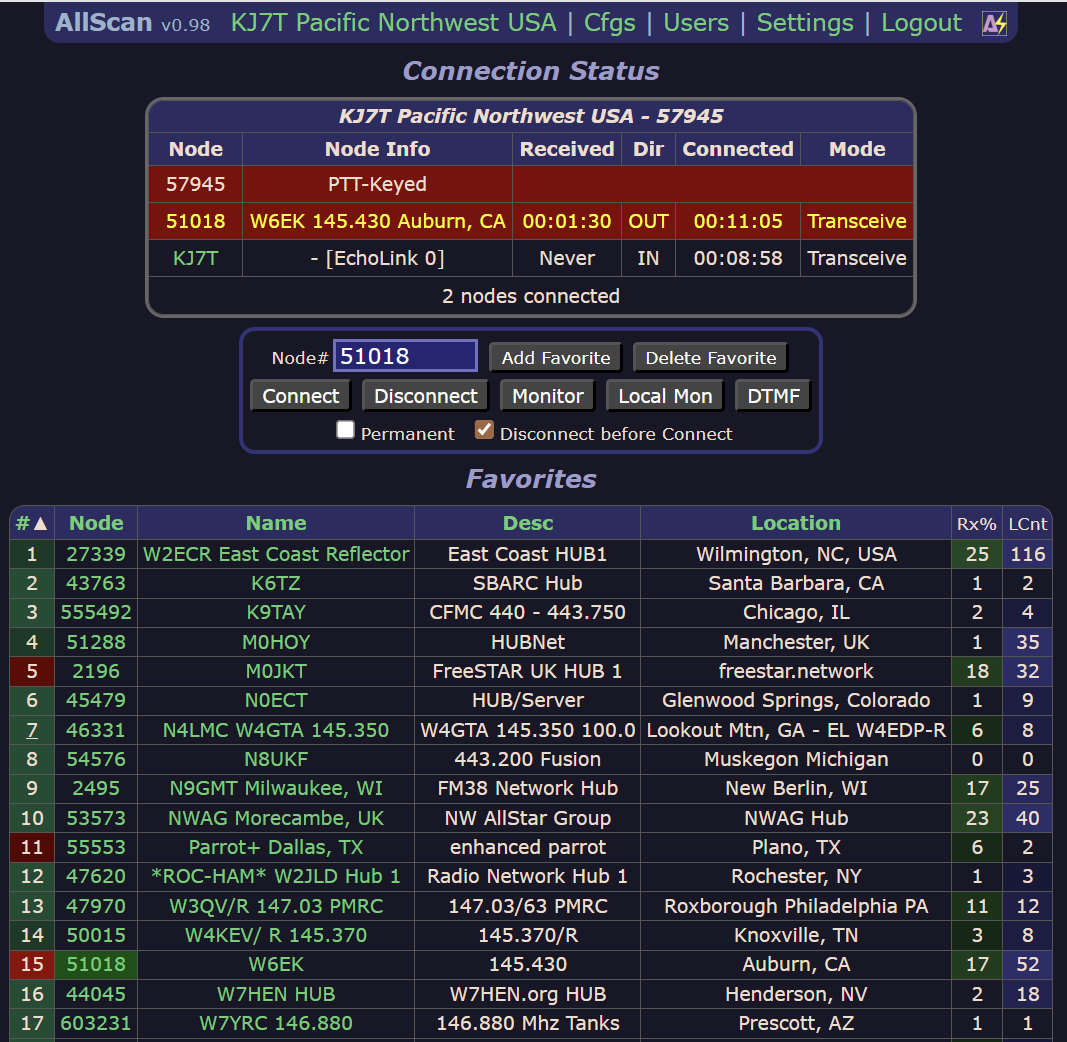
The AllScan favorites management app shows that even though I’m connected over IAX, it shows up as Echolink. Here’s my Droidstar screen during this connection:
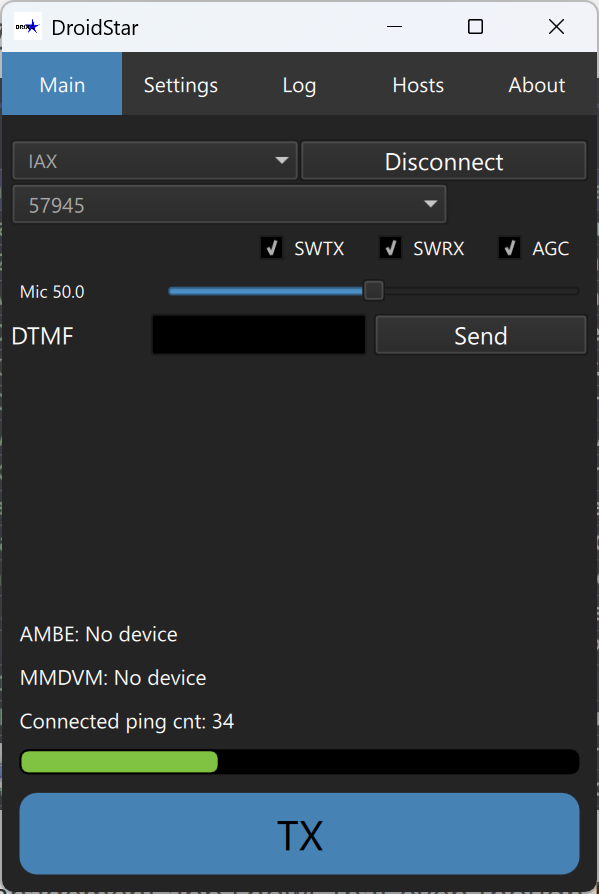
Why am I describing this? Because it’s nice to have usable options. I can also connect using the IAXRPT application on my Windows laptop. (I can use Droidstar and DVSwitch Mobile on my Android phone, too. I have Hams Over IP configured on the Groundwire softphone app to connect to one of my AllStar nodes, but that wasn’t working when I wrote this section of the newsletter. It’s now working properly.)
I have the SharkRF m1ke WLAN IP transceiver in my laptop bag. It is set up to connect to my node-in-the-cloud over an IAX2 connection that also shows up in AllScan as an Echolink connection. I’m using an orphaned sock (you know the one that went into the wash as a pair and came out alone) to protect the m1ke from damage in my bag.
UPDATE: I bought a leather case that just fits the m1ke. The device deserves protection, and I often just grab one of my radios (and now the m1ke) and toss it in my briefcase or should bag. The case looks like this:
Source of the $15 belt case:
Is this real amateur radio? I think it is, even though it isn’t wireless radio like a handie talkie transmitting over RF to a local repeater. Instead, these are various combinations of RF and/or IP connections that licensed amateurs use to communicate with. Now if you believe amateur radio can only involve RF (electromagnetic waves), these alternatives that utilize electrical signals probably don’t feel like radio. Surprisingly, though, these systems do utilize RF, even if the RF is not always in the amateur bands. Specifically, connections through a cellular phone or a wifi router happen through RF. And any such system that is connected to an RF-based repeater is also utilizing RF, even if your connection is not over RF.
Wired radio is one of the newer communication methods available to licensed hams. It doesn’t replace wireless radio — it expands our communication opportunities beyond the limitations of RF.
Why is this important? Because it allows people to communicate when they can’t utilize RF-based methods. For people in nursing homes and hospitals, wired radio might be their only option. The same may be true for people in apartments or folks who live too far away to hit a repeater. If you know someone with limited mobility or limited functions, wired radio can help them feel connected to others in our radio community.
Wired radio is also available to all classes of licensed amateurs in the United States. I think this gives more experienced hams with higher-level class privileges more opportunities to teach hams good procedures.
You don’t have to use wired radio systems if you don’t want to. This doesn’t mean that nobody should use such systems. I like options. I like knowing that the reach of our hobby is now wider than ever before. Embracing new technologies fits the spirit of amateur radio and benefits our community. New methods of communicating by voice and with data align with two of the most fundamental aspects of amateur radio: connection and communication.
A primer on hotspots?
I listened to a great QSO between a few of my “home” radio amateurs as they talked about hotspots, how they are used, and options. As they talked, I realized that some of us might benefit from a primer on hotspots. The explanations I heard were spot on and very helpful. As I type this, I’m trying to remember—as closely as I can—that conversation. (I wish I had recorded it!) Please consider this a start to a primer and not the final product. If you’d like to add or edit this content, please contact me. I could use the help!
What is a hotspot?
Well, there are two different things that are both called hotspots. When radio amateurs talk about hotspots, we are usually talking about a device that is connected to the internet and is accessed with a radio. It acts like a connector between a handy talkie (usually, but I’ve used my mobile radio in the truck) and an internet-connected service like D-STAR, Yaesu System Fusion, DMR, AllStarLink, and more.
But there is also the hotspot that is now common in smartphones. It used to be that you had to buy a special device that connected to your cellular network, but most modern phones now have that functionality built in. The hotspot in your phone allows you to connect a device to your cellular network via a wifi connection with your phone.
To avoid confusion, it’s important to be clear about which kind of hotspot you are talking about. For clarity, I’ll call them radio hotspots and cellular hotspots.
Radio hotspots
For radio hotspots, I’m going to focus on MMDVM hotspots. MMDVM means Multi-Mode Digital Voice Modem. An MMDVM hotspot acts as a gateway to a digital network. It must be connected to the internet. “Basically, hotspots are your own personal digital voice repeater and gateway.”
The following italicized content is quoted and paraphrased from https://www.onallbands.com/what-you-need-to-know-about-mmdvm-hotspots/:
MMDVM stands for Multi Mode Digital Voice Modem. Simply put, it’s your Internet gateway to a particular digital network of hams. You can use an MMDVM hotspot if you don’t have a digital repeater nearby or simply want some other options. Basically, hotspots are your own personal digital voice repeater and gateway.
A personal, low-power hotspot is a combination of hardware, firmware, and software that lets an amateur radio operator with an Internet connection link directly to digital voice (DV) systems around the world. With a transmitter power of around 10mW, a hotspot acts as a personal repeater so you can connect to a variety of digital radios and digital networks using an HT or mobile radio, including:
-
D-STAR: Digital Smart Technologies for Amateur Radio
-
DMR: Digital Mobile Radio
-
YSF: Yaesu System Fusion
-
P25: Project 25
-
NXDN: Next Generation Digital Narrowband
Also, some cross-mode capabilities exist, from DMR to YSF (DMR2YSF) for example. There’s no need to buy multiple digital radios.
Cellular hotspots
A cellular hotspot creates a local wifi network that connects your device(s) to the internet. Says Netgear U.K.:
A mobile hotspot acts as a portable bridge for connecting your devices to a WiFi network. If you want a WiFi connection while you are out and about, a mobile hotspot is the solution. A mobile hotspot works like your home broadband router, allowing you to connect to laptops, iPads, phones, and smart home applications.
How to connect to a radio hotspot
You use a radio to connect to a radio hotspot that has an MMDVM modem. Normally, you need to match the radio’s capabilities to the mode selected in the radio hotspot. For example, if you configured your radio hotspot for Yaesu System Fusion (YSF), you would need a YSF-capable radio to connect.
The software that runs your radio hotspot is likely to be Pi-Star or WPSD. (While I prefer WPSD, I use both systems.) You configure your software to use a particular radio frequency, and if desired, a CTCSS tone. For my radio hotspots in Portland, Oregon, I do use tones because I’m in a fairly urban area with lots of on-air traffic. For my radio hotspots in Grapeview, Washington, I tend not to use tones because the location is very rural. The frequency and tone in radio must match the frequency and tone of the radio hotspot.
This is true for simplex radio hotspots. Simplex means transmit and receive on the same frequency, and you can only do one of those things at any moment in time. Some radio hotspots are configured for duplex communications, meaning you can hear incoming traffic while you are transmitting, if your radio has two independent radio circuits (VFOs). For example, my Raspberry Pi 5-based radio hotspot, running WPSD software, is a duplex hotspot. With my Yaesu FT-5DR set to split frequencies, I can send on UHF and receive on VHF, allowing my handheld radio to function in duplex mode.
I’ll stop there for this week. I think this content will be serialized, and once completed, I’ll repackage it all in one place as a TechNote.
Sneak peak at the mini server rack
I’m enjoying fiddling with the 10” server rack I briefly mentioned last week. (This has been a late night project when the house is quiet and the phone doesn’t ring.) Two Lenovo ThinkCentre tiny PCs are scheduled to arrive this week (but tracking shows they are delayed). I have three empty slots in the rack available.
I’m shopping for one more ThinkCentre tiny PC. It doesn’t need to have a hard drive or SSD. It doesn’t need to have an operating system. It doesn’t need to look good. It doesn’t even need to operate. What it does need to have is 32 Gb of RAM. Since RAM prices are so high, I’m looking for a deal where I can harvest the RAM for one of my working machines, plus get some spare parts. I probably won’t find such a deal, but it’s worth looking.
If I can find some 32 Gb RAM sticks that fit, I’d like to try stuffing 64 Gb into one of the tiny PCs. Reportedly, this platform will work with 64 gigs of RAM even though the stated capacity is only 32 gigs. But the price of RAM is so high now that I may have to be patient and look for RAM I can salvage from another PC.
UPDATE: I found some RAM that should fit at a much lower price through WalMart.com. While this is not my preferred vendor for electronics, it’s worth taking a chance because the price was about half that of most other vendors. Fingers crossed that this wasn’t a mistake.
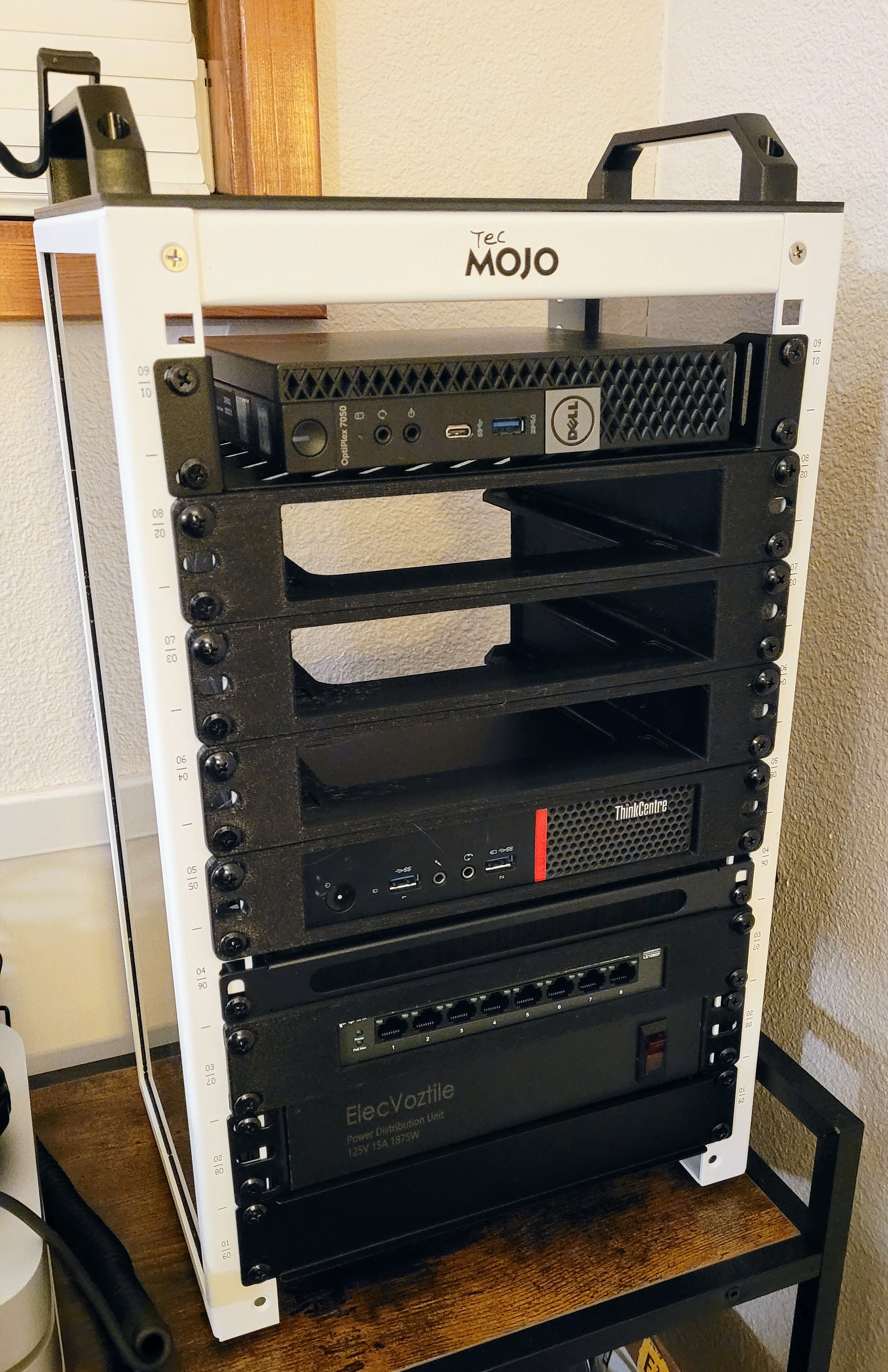
Starting at the top, here is what is in the rack right now:
-
A shelf with a Dell tiny PC on it for now. The Dell will probably be replaced by a few Raspberry Pi computers in the future.
-
Three empty slots for Lenovo ThinkCentre tiny PCs. The shelves for the tiny PCs were sourced on Etsy in PETG (“PETG is a Glycol Modified version of Polyethylene Terephthalate”).
-
A Lenovo ThinkCentre tiny PC.
-
A cable pass through.
-
A TP-Link unmanaged switch. The shelve for it was also sourced on Etsy.
-
A power delivery unit (affiliate link) with four 120VAC sockets on the back.
-
A 1U spacer that hides a shelf where I stuff the power bricks for the Lenovo PCs.
I’ll be booting it all up this weekend, once I get the two tiny PCs installed. I think the largest capacity tiny PC will have an i7 CPU, 32 Gb of RAM, and a 1 Tb SSD. I’m waffling between putting Ubuntu Server on it or Proxmox. The intended use of this one tiny PC will be for virtualized machines and services.
(And thank you to subscriber Gareth for the suggestion to look at Proxmox VE Helper Scripts. The list of helpful pre-made scripts is extensive!)
I also received an offer from an eBay seller for an HP EliteDesk 705 G4 DM Windows 11 Ryzen 5 PRO 8GB 256GB SSD machine for less than $100. The CPU has six cores and runs 12 threads at up to 4.55 GHz. This would be plenty of power for an AllStar node. A Raspberry Pi 5 has four cores and four threads, and a lower clock speed. Do I need another node? No! But this small platform seems like a great alternative to a RPi 5 because it offers more cores, threads, and speed, plus the SSD for storage, for about the same cost as an 8 Gb RPi 5.
Short Stack
-
The Pulse: Cloudflare takes down half the internet – but shares a great postmortem
-
I’m starting to get interested in 3D printers and don’t want to make an expensive mistake, so I found Why I’ve given up on buying the perfect 3D printer to be a useful primer on high-level aspects of 3D printing.
-
I’m an ARRL member but I renew each year with some misgivings. Why do I pay my money if I’m not completely happy? Because I run a nonprofit association and I have come to realize one can never meet every individual need. ARRL membership drops 8.3% in 2024 touches on possible reasons why ARRL membership is declining.
-
16 New Products at DX Engineering for November 2025 contains some interesting devices, from a VHF/UHF dipole mount to a great looking amplifier.
-
Time to be thinking of Christmas gifts! What to Buy a Raspberry Pi Fan for Christmas 2025 (Top 13 Picks)
-
Astronomy Linux is a long list of astronomy-related programs that run on Linux. Find it at https://astronomylinux.eu/repository.html. I know at least one radio amateur who loves the Sun, so this kind of repository might be a hit for him.
-
An interesting home automation alternative is described in Stop paying for Zapier; this free tool automates my entire workflow
-
Also interesting: Canonical’s MicroCloud turned out to be an amazing addition to my home lab. Apparently, you can run virtual machines and containers in MicroCloud. It runs on a Raspberry Pi or your server. A downside is that community scripts for containers like those in the Proxmox space aren’t available.
Closing
Updating my Synology NAS box from 150 miles away
I received a notice of a critical update on my network-attached storage (NAS) system 150 miles away in Portland, Oregon. Fortunately, I am running Tailscale on the NAS, so all I had to do was find my directory of active Tailscale addresses, copy the address for the NAS, and paste that into a browser window.
Once logged in, I found a DSM update (DSM stands for Synology Disk Station Manager) in the Control Panel and some package updates needed in the Package Center. I installed the DSM update, and once that was done, I installed the package updates.
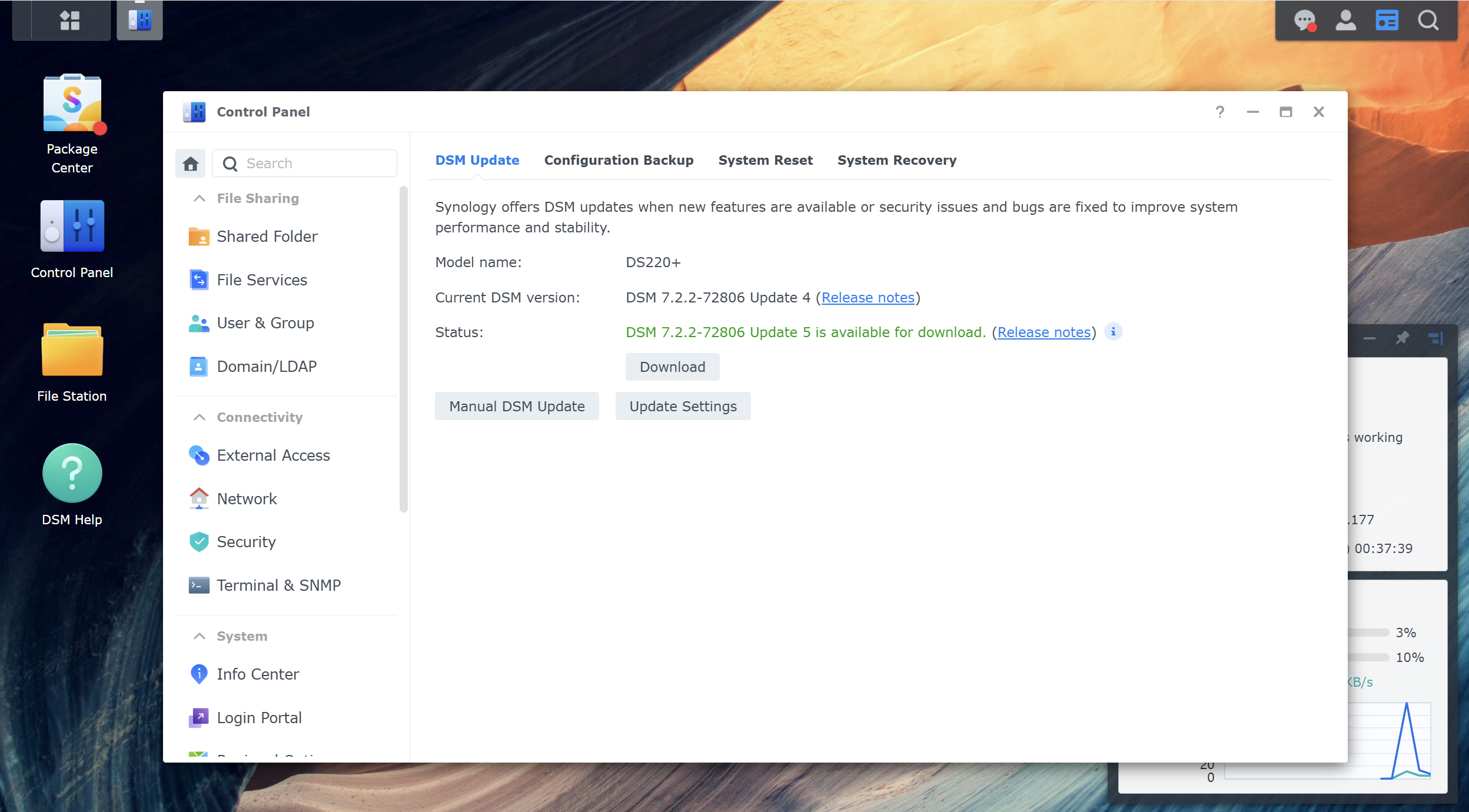
This is an example of why I like Tailscale so much. It’s free, reliable, and works almost seamlessly for me.
PIM
Those of us of a certain age remember the time when PIMs — personal information managers — were all the rage. Now there are successors in this space like Obsidian and Notion. (Obsidian worked better for me. I found Notion a little too unstructured for my taste.) I’m trying out an alternative called Anytype. The tag line on their website says: “the everything app for those who celebrate trust & autonomy.” That is a high bar to jump over.
Anytype content is structured, but you create the identifiers within this structure:
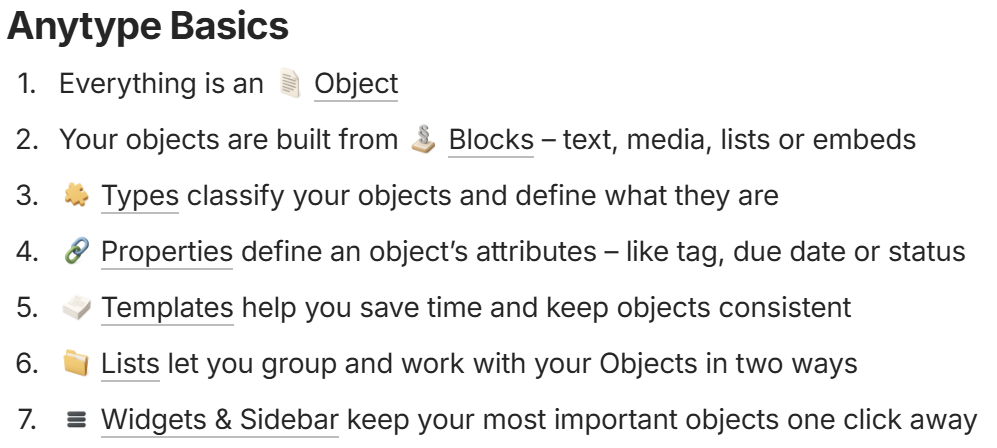
This structure seems nicely balanced between simplicity and granularity. I’m looking forward to digging into Anytype. I have a feeling it might be the kind of structured-but-still-loose database my small work team needs.
Got some calls from SIPVicious
My SIP phone started ringing a few nights ago with multiple calls from something called “sipvicious.”
SIPVicious is an auditing tool that hackers can also use to scan networks for vulnerable ports. If a vulnerable port is found, the software sends an INVITE message, causing the IP phone to ring.
In my case, I had a port forward established on the router for one of my SIP phone accounts. I deleted that port forward and the calls stopped. If that proves to be insufficient, I’ll work on allowing only my provider’s IP addresses.
Learn more on what to do to stop such calls at https://help.2talk.com/en-GB/kb/articles/ghost-calls-2
That’s deep enough for now.
Favor? Could you let me know if you can access my node 588418 AllScan page? Link: http://588418.nodes.allstarlink.org/allscan (note: this is an HTTP connection, not HTTPS, because I haven’t installed a cert on that machine). If that works, then I don’t need to use Tailscale to access it (although I’ll still use Tailscale for SSH into the node from afar).
Thank you for making it to the end of the Random Wire newsletter. Your suggestions and questions are always welcome. Remember to touch a radio every day!
73,



Leave a Reply