
September 5, 2025: Topics in RW 147 include: a digital interface; trying to install Debian on a Chromebook; thoughts on MX Linux; M17 ideas; the M17 Net on Kansas City Wide; and some HF antennas.
Top of mind
-
The ZRDC (Zero Retries Digital Conference) is just around the corner. “The inaugural Zero Retries Digital Conference (ZRDC) 2025 will be held in Everett, Washington, USA on Saturday, September 13, 2025.” Learn more at
-
I mentioned a CW resource a few issues back and a subscriber then alerted me to Morse Power. If you’re interested in CW over the internet, it’s worth checking out https://morsepower.blogspot.com/. (For those who appreciate a bit of irony, I hope you recognize we’re talking about the original digital mode [CW] on the newest digital system [the internet]. There is something about this that feels right about this pairing, even when it may seem odd to consider CW over the internet!)
-
There is an M17 weekly net on Saturdays at noon (Central Time) on America’s Kansas City Wide International Digital Network. (See the many nets hosted on KCW at https://www.kansascityroom-wide.com/nets/.) KCW now bridges to an M17 reflector known as M17-KCW. If you are connecting via M17, use Module A. For DroidStar, this is the correct Hosts string for the KCW reflector: M17 M17-KCW 172.234.217.28 17000
-
rsnapshot for incremental Raspberry Pi backups…but why not for a Debian 12 system, too? I’ll have to try it.
-
Getting Started with Ham Radio on Raspberry Pi. The title says it all.

Project: Debian and AllStarLink on a Chromebook
This is an in-progress report, not a summary of a completed project. And I don’t know that it’s going to work, but that’s the very nature of experimentation, isn’t it.
I picked up a couple of “grade B” Lenovo 300e Chromebooks with the intention of converting at least one of them to Debian 12 and installing AllStarLink on it. One was barely grade B, with one scratch on the keyboard. The other was closer to grade C. Both booted up to ChromeOS and seem mechanically sound, with working screens, keyboards, and mouse pads.
So far, the biggest challenges I’ve run into are:
-
There were three generations of the 300e, each called the 300e. One had an ARM CPU. Fortunately, I bought the MKII (mark two) model that runs on Intel chips, so Debian should run fine once I defeat the Chromebook safeguards.
-
Getting the bottom off of these laptops is proving to be quite a challenge. One of the ways to get around the Chromebook protections is to remove the bottom and disconnect the battery, then boot from a USB stick with the Debian image on it. I found a resource that speaks to removing the bottom cover of the laptop…but what I discovered is it is the keyboard that gets removed. I didn’t see that method in my research. They keyboard pops out easily with a couple of spudgers.
Why, oh why, would one do this? I know it can be done because I’ve done it with a few old Windows laptops. And I’ve seen Chromebooks converted to various Linux flavors available on eBay. So clearly, it can be done, but that doesn’t mean I can do it. Trying is enjoyable, even if I don’t succeed in defeating the Chromebook safeguards. I’ll try to ChromeOS with Debian 12. From there, it’s just a few more commands to install AllStarLink. What this means is for $60, I could have a working radio-less AllStar node with an attached keyboard and screen. Add in a microphone interface from AllScan.info and it would be a complete, working AllStar node…with a few scratches and scrapes because these are grade B used machines.
Do I need another node? Absolutely not. But I do enjoy repurposing old tech, and Chromebooks tend to be built pretty tough, so something like this could be a great choice for a radio amateur who doesn’t want to create a node made up of a whole bunch of individual pieces.
More on this as it progresses.
Would AllStarLink 3 work with MX Linux?
I’ve been reading great things about MX Linux, especially on older or resource-limited platforms. Would it, could it work with AllStarLink 3?
First, what is MX Linux?
It is a midweight desktop environment that aims to be fast and low-resource, while still being attractive and user-friendly…It supports a large range of hardware from older laptops to modern desktops. Available in Standard Debian Stable and “Advanced Hardware Support” enabled versions.
MX Linux rocks an XFCE desktop interface and is based on Debian Linux. I find myself wondering: has anyone tried MX Linux as the base for an AllStarLink 3 installation? This should be possible, although I might have to compile the packages needed for ASL 3.
As an aside for Raspberry Pi users, MX Linux also offers a version for Raspberry Pi 4, 400, and 5: “MX-23.6_rpi_respin, a respin of Raspberry Pi OS with a MX setup and tool set, suitable for Pi4, Pi400, and Pi5 hardware.” MX Linux appears to be based on kernel version 6.1 which is the version Debian 12 Bookworm is built on.
Why even consider doing this? Because with a limited platform, a stripped down (presumably faster) operating system should make ASL 3 run even better. It might also allow older, limited hardware to successfully run ASL 3.
I found some attractive-sounding attributes of MX Linux in the MX Linux Facebook group, including these points:
-
It has multiple ways of running live, including with persistence. With a fast USB 3 drive, it’s almost as fast as installed.
-
Although it uses sysvinit as the initialisation service, it can optionally boot with systemd, if so desired.
-
It has the ability to run live from USB, make changes, then remaster so those changes are now part of the USB.
-
The MX Snapshot tool can be used for backing up a running system, or to create a new ISO for distribution to others.
-
It has the ability to be tested live, have additional software installed, be configured, then have those changes carried over to the install.
-
In addition to the software available in the Debian repositories, it has other curated software that can be installed in the MX Test Repo.
-
It has a range of simple tools to carry out tasks that would otherwise need to be done in a terminal.
-
It has a range of tools to help solve problems with things like non-working network or sound cards.
-
It is created and maintained by a team of developers who are Linux enthusiasts and who use MX Linux for their work and play.
My guess is that since MX Linux is based on Debian, it probably pulls some updates from standard Debian repositories. That gives me some confidence that ASL 3 would work with MX Linux.
Also, this message in the AllStarLink Community Forum by KX4ZU Tim in September 2024 provides even more confidence:
I have successfully installed ASL3 on LMDE (Linux Mint Debian Editions). LMDE aims to be as similar as possible to Linux Mint, but without using Ubuntu. The package base is provided by Debian instead. ASL3 also runs quite well on MX Linux.
I think this is worth experimenting with, plus I’d just like to try MX Linux and get familiar with it. This is an ongoing project that could also intersect with the Lenovo Chromebook experimentation mentioned above.
M17 meanderings
I could dedicate one of the two Lenovo Chromebooks to AllStar and use the other for M17. For M17, I’d probably try M17 Digital Voice.
I already set up an M17 reflector (using mrefd) on a cloud server in Seattle. You can see activity at http://m17pnw.net/#/ and the system dashboard at https://dvref.com/mrefd/m17-pnw.
I found a GitHub package that can link AllStar and M17. Since I’m interested in both systems (and I have an AllStar node in the cloud: https://kj7t.net) this looks particularly interesting. I like the idea of bridging AllStar and M17 as this might create more interest in M17 and help build community. Find it at https://github.com/juribeparada/MMDVM_CM/tree/master/USRP2M17.
Want to listen to M17 to see what the buzz is all about? You can do that in a browser with M17Web. I’ve not used this very much since I have bought M17 radios, built a hotspot, and stood up my own reflector, but the few times I tried it, it worked. Note that since M17 is relatively young, there may be relatively little traffic on M17. The example linked below connects to what is probably the most used reflector: M17-M17 C. Find M17Web at: https://m17project.org/2025/03/08/m17web-listen-to-m17-reflector-traffic-in-your-browser/.
Not new, but new to me, the M17 Florida Man Edition looks interesting: https://github.com/lwvmobile/m17-fme.
M17 Net on Kansas City Wide
While I’m with my wife in the hospital, I’m using DroidStar (the Windows version from pizzanbeer.net) to listen to the M17 Net on Saturday at noon Central.
To do that, I had to connect to reflector M17-KCW on Module A (source: https://www.facebook.com/share/1EchvHoXrq/). If I remember correctly (I rushed through this while at the hospital), here’s how to do that:
-
If you don’t already have a working instance of DroidStar, download it (already compiled) for Android or Windows from http://pizzanbeer.net/droidstar/ and install it.
-
Open DroidStar and add your callsign and your DMR ID number in Settings (if you are only going to use it for M17, you don’t need your Brandmeister password or your AllStarLink password).
-
If you don’t find M17-KCW in the list of reflectors available, update the list of hosts by going to Settings and scrolling down until you see the Update Hosts button. Click the button.
-
If you still don’t see it, you can add it manually in the Hosts tab: M17 M17-KCW 172.234.217.28 17000
-
Then back on the Main tab, select M17 as the mode, M17-KCW for the reflector, and Module A for the module.
-
Click Connect.
Here are screenshots of DroidStar that illustrate some of these points:
Before the net this week there was some traffic, so I recorded a little bit of it on my smartphone in a very noisy hospital room. You will hear a hum in the background — that isn’t coming from the M17 signal but from the HVAC system and medical equipment in the hospital room.
Several good topics were discussed, including:
-
The first Zero Retries Digital Conference, coming up very soon.
-
The LinHT and how that project is progressing.
-
Connect Systems radios (CS-7000 and CS-7000 Plus).
-
The differences between various digital modes and why M17 matters.
A parallel chat session at https://www.ham.live/views/dashboard was also held with plenty of good questions and answers around M17.
(There is also M17 Activity Day, aka M17 Activity Friday, which seems like an informal “hey, let’s all use M17 today” kind of casual net.)
Later, I captured some audio from the Kansas City Wide M17 reflector, piping it directly into Audacity to avoid picking up the noise in the room around me:
It’s important to recognize that this audio capture isn’t pure M17. The speaker was coming into KCWide over some other digital mode, perhaps DMR or YSF (Yaesu System Fusion). But the audio recording gives you a fair idea of what you might hear on KC Wide through the M17-KCW reflector.
Kansas City Wide has a lot of nets, all week long. You can listen or join via several different digital modes:
Please join us in Kansas City Wide for our many nets. Most are non-directed and informal. Access via local repeater, System Fusion Room 28054, YSF Reflector US-KCWide, DMR Talkgroup 313136, P25 Talkgroup 31313, D-Star XRF458A, Hamshack Hotline 94077, or Echolink. All are welcome!
Since Hamshack Hotline is now offline, KCWide has added Hams Over IP as one of the way to connect:
America’s Kansas City Wide digital network is reachable via Hams Over IP VOIP telephone at extension 15135. This provides a 100% digital connection between your desk or your cell phone and the KCWide network.
If you couldn’t tell, I enjoy the depth and breadth of what KCWide offers to radio amateurs.
A new digital interface
Meet the LiNK500:
The LiNK500 is what you call a true plug-and-play device. It combines a high-quality sound card, CAT control, GPS, and a TNC in a compact housing. With just one USB-C cable, you connect it to your computer, and it provides you with a sound card for audio and three virtual ports for CAT, GPS, and the TNC. The device is compatible with almost any computer and operating system, as well as with tablets and smartphones. A special highlight is the TNC’s Bluetooth connectivity.
Sounds tempting. The closest analogue I can think of is a DigiRig device plus GPS, Bluetooth, and a built-in APRS tracker. Linking cables are available for the Icom IC-705 and a short list of Yaesu transceivers (817, 818, 857, 891). Since I have an FT-891, this becomes even more tempting.
Find the LiNK500 at https://diy599.net/products/link500.
HF antennas ordered
I anticipate having some time to get on the HF bands in the next few months, so I bought a reasonably priced vertical antenna from Ham Radio Outlet:
MFJ MFJ-2980
33 Foot Feather Lite 7 – 54 MHz Wire Vertical Antenna – 600 Watts
The price seemed quite fair at $99.95, but since it comes as an oversize package, the delivery charge was a bit surprising at $49.95.
I’ll also have a telescoping metal whip, and if I remember where I stored my end-fed halfwave wire, I can use that, too. On the off chance I don’t find my old EFHW Chameleon antenna, I ordered a 6-20 meter off-center fed wire from Palomar:
I ordered the 100-watt OCF antenna for $120. It can be used as a vertical wire, a horizontal wire, a sloper, and an L antenna. It’s short at just 25 feet long, so I may be able to use the MFJ 33-foot mast with the Palomar OCF antenna. We’ll see!
When I was first licensed, I built a shortened OCF antenna that worked surprisingly well. I say surprisingly because I was shocked that it worked at all. (I did not grow up working with electronics so even simple things still seem pretty amazing to me.) I made a lot of contacts with that simple antenna so the idea of a new OCF antenna is rather pleasing.
A modular Raspberry Pi Zero case
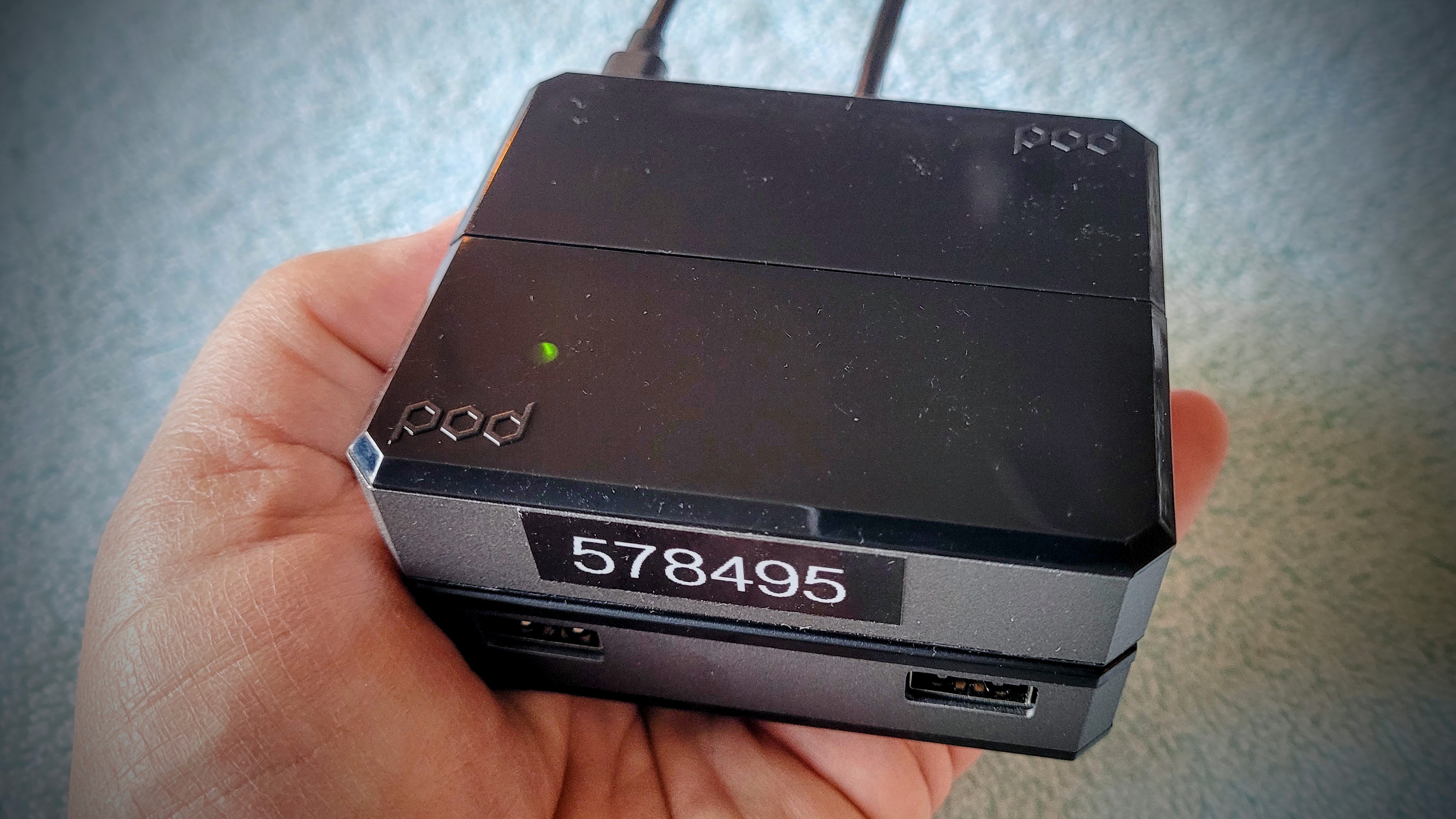
This case is probably unlike any other Raspberry Pi Zero case you’ve encountered. I’ll call it the Argon POD System. It is a set of modular case components that can be combined to add functionality. The photo below shows three modules snapped together, giving me several more USB-A ports plus a standard Ethernet jack on the back of the case.
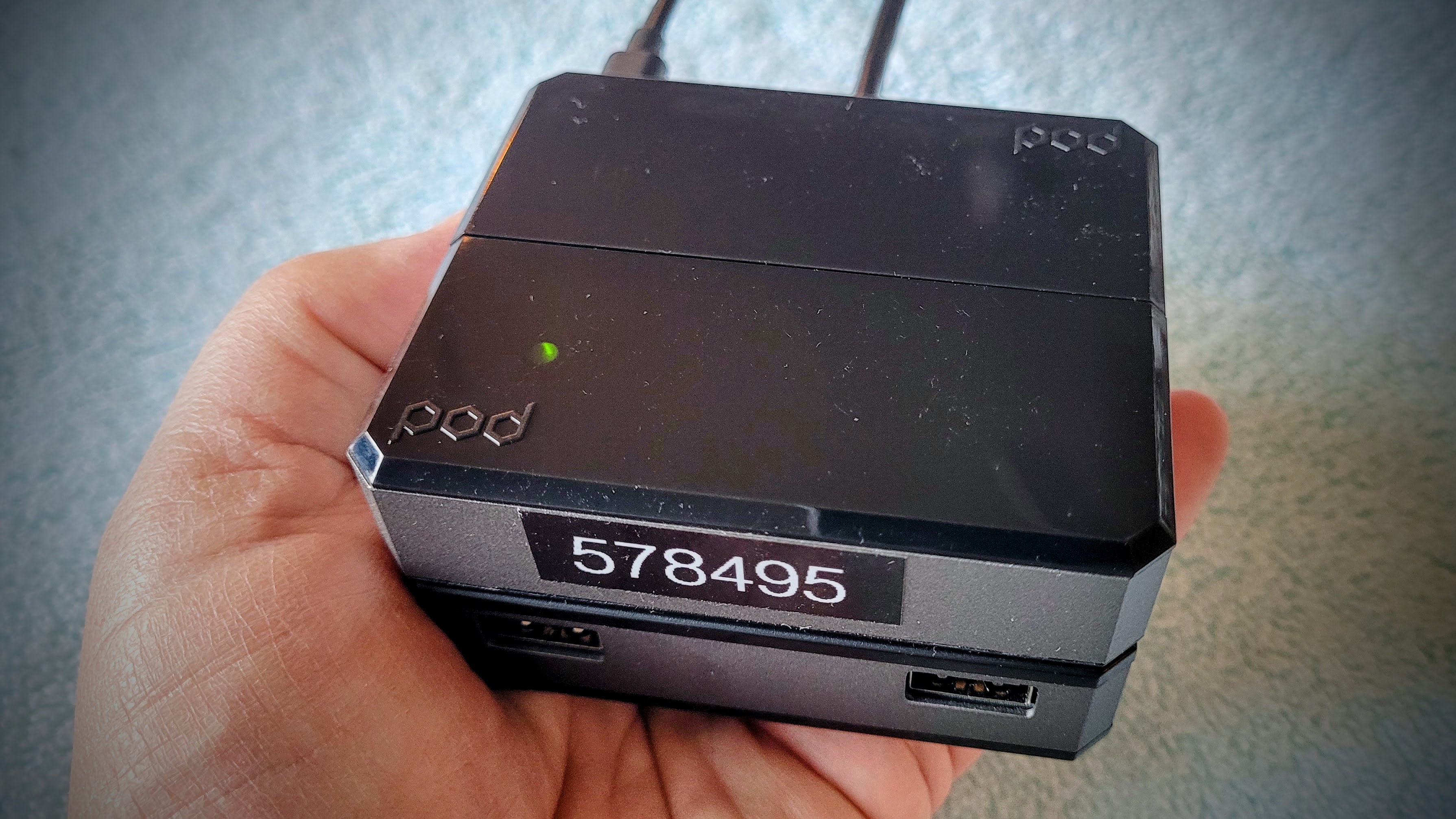
That’s a big case for the diminutive Raspberry Pi Zero. Let’s break it down.
First is the RPi Zero case itself. As you would expect, it is not much larger than the RPi Zero board. At just $10, it features an aluminum body with a plastic top and bottom.
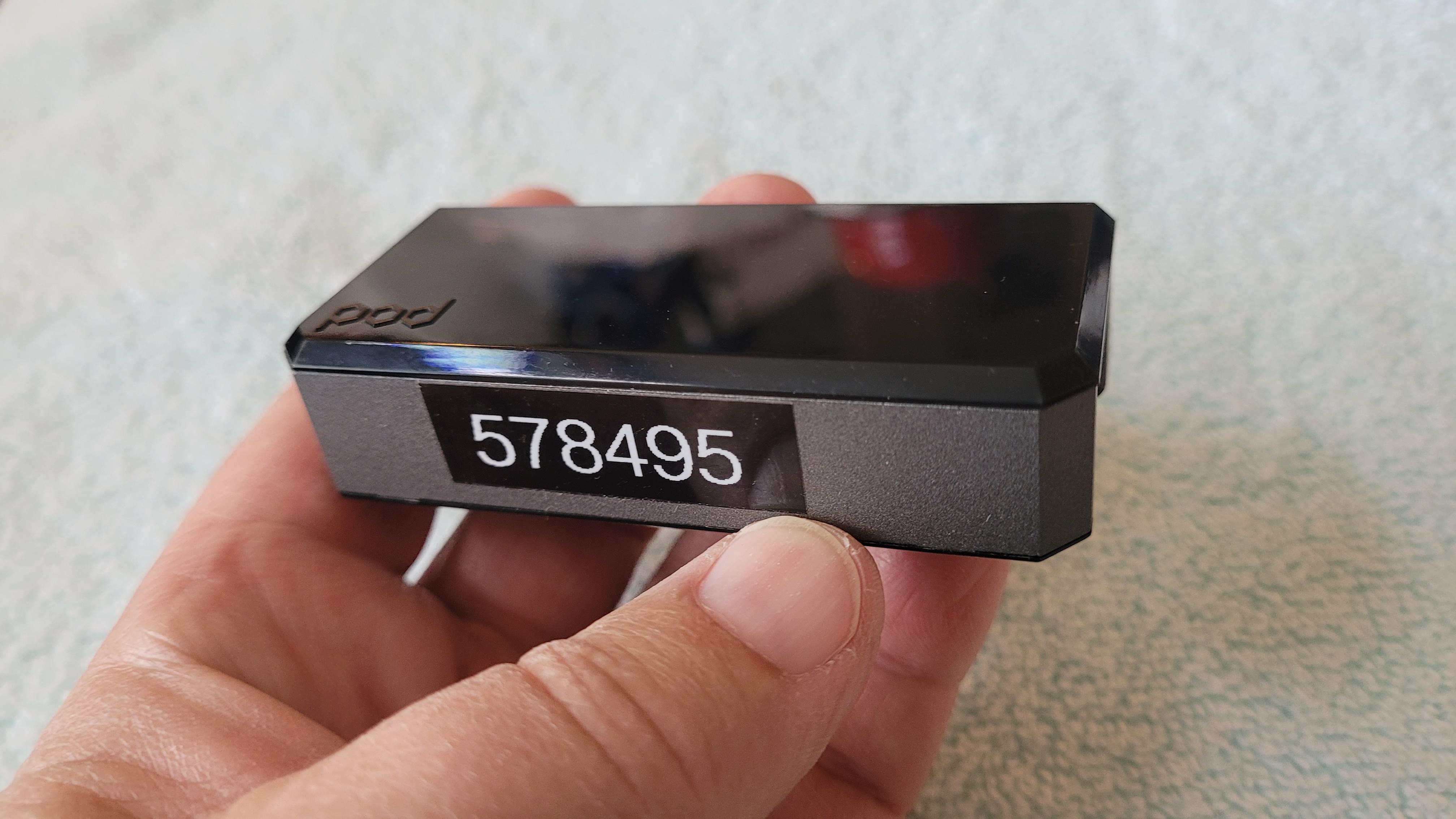
The back of the case has the microUSB and HDMI ports you expect to see on an RPi Zero board. The microSD port is exposed on one end (not shown in the following photo). The case comes with a bit of thermal tape that connects the RPi processor to the aluminum case for heat transfer.
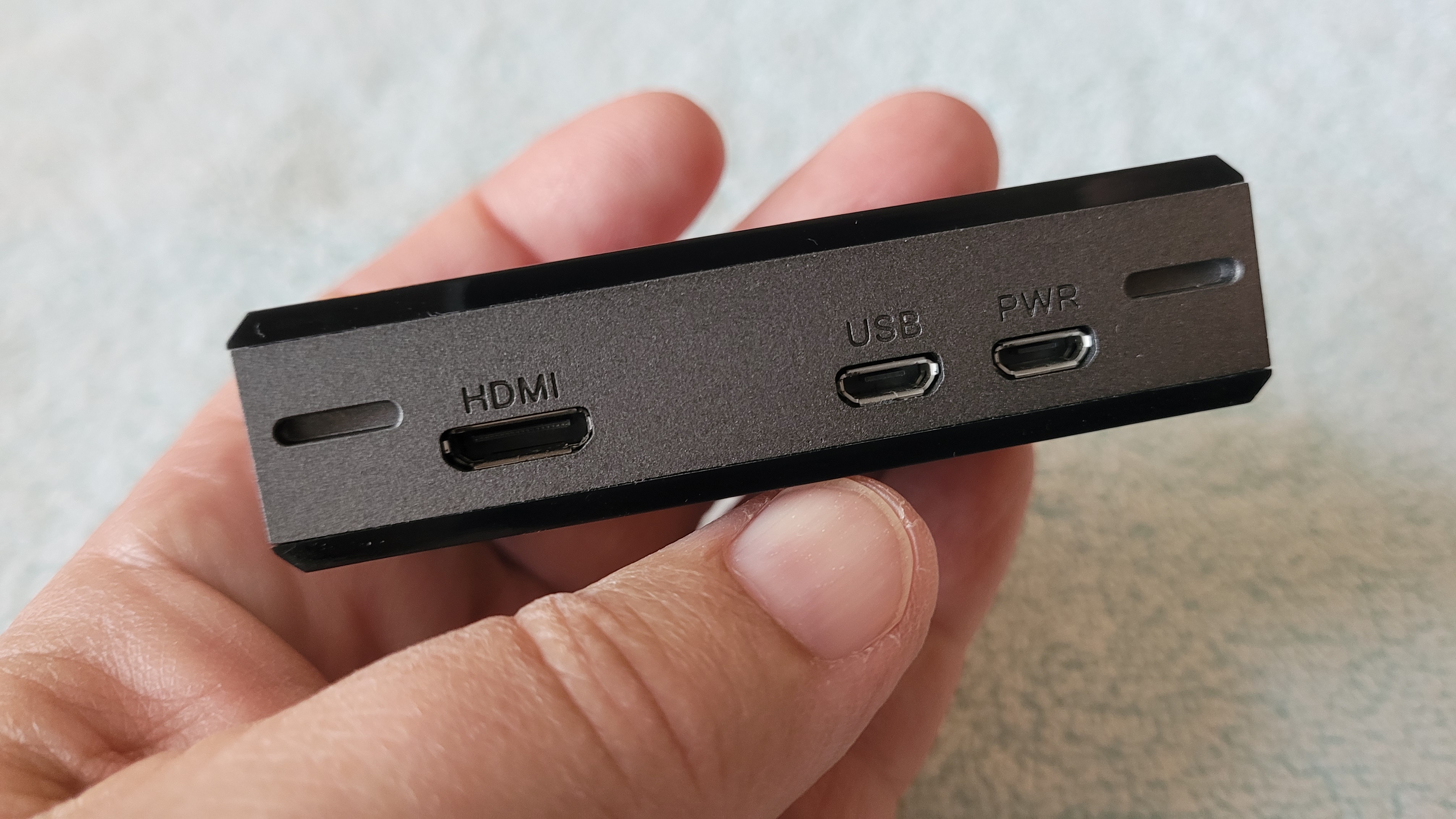
Maybe you’d rather have a couple of full-size USB ports. No problem. Just snap the main RPi POD module to the Argon POD USB-HDMI module, using the ports as connectors.
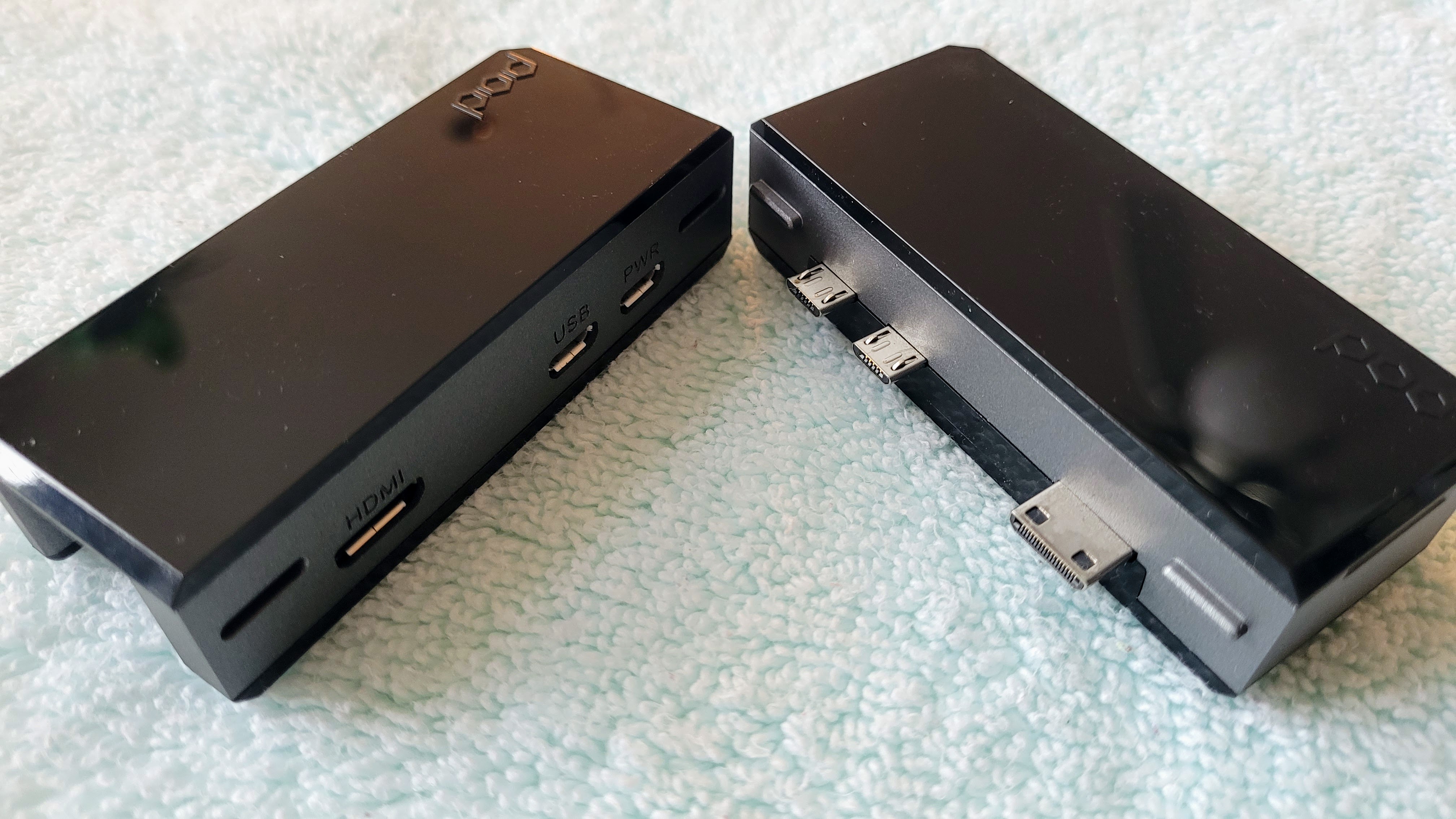
In the photo above, the main POD module contains the RPi Zero and the right-hand POD module has the USB-A ports, an HDMI port, and a microUSB power port.
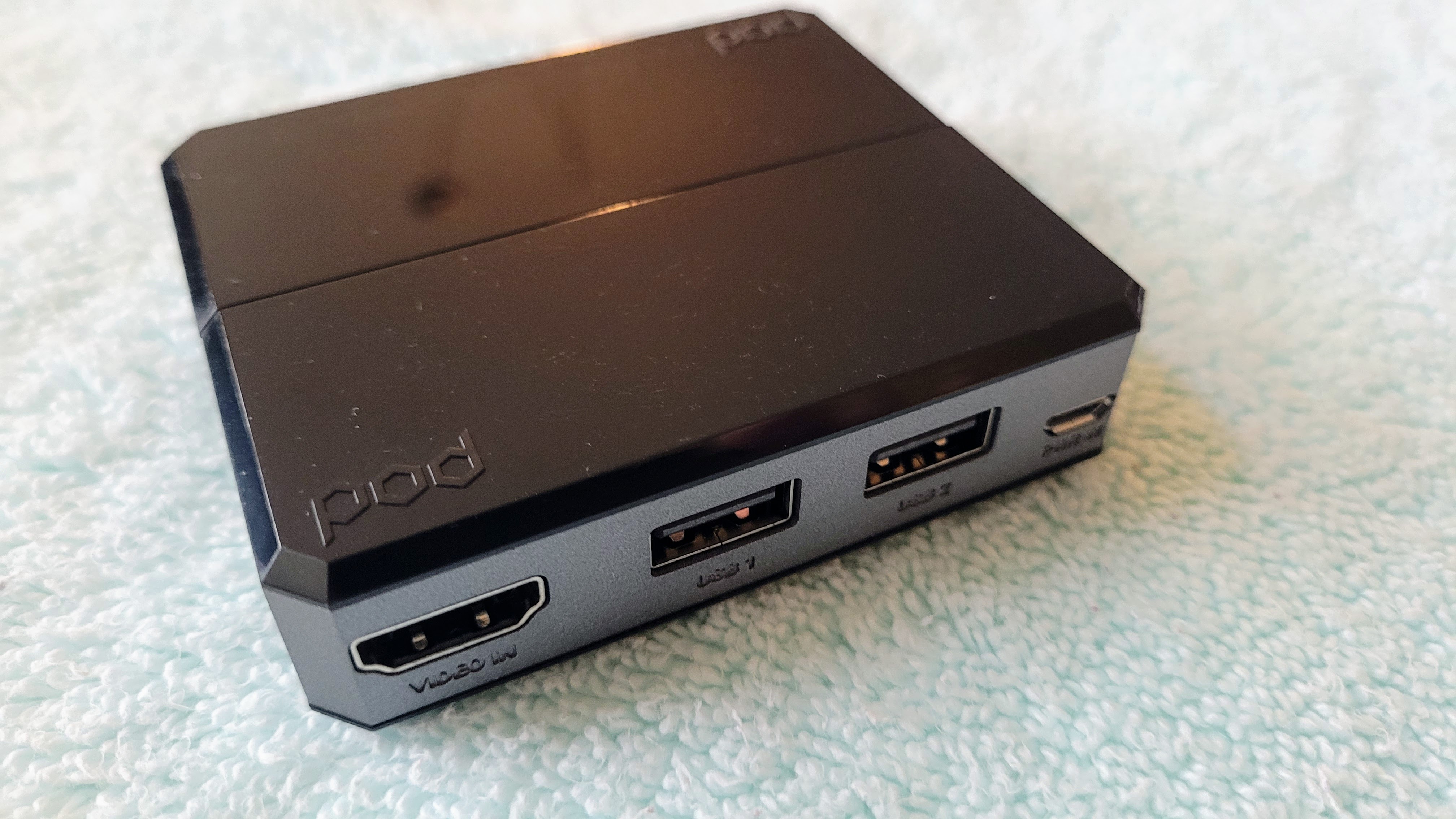
Now, what if you want to use a standard Ethernet cable to jack into the machine? You are out of luck unless you snap on the Argon POD USB-LAN module. This adds four USB-A ports (two on the back, two on the front) and an Ethernet port.
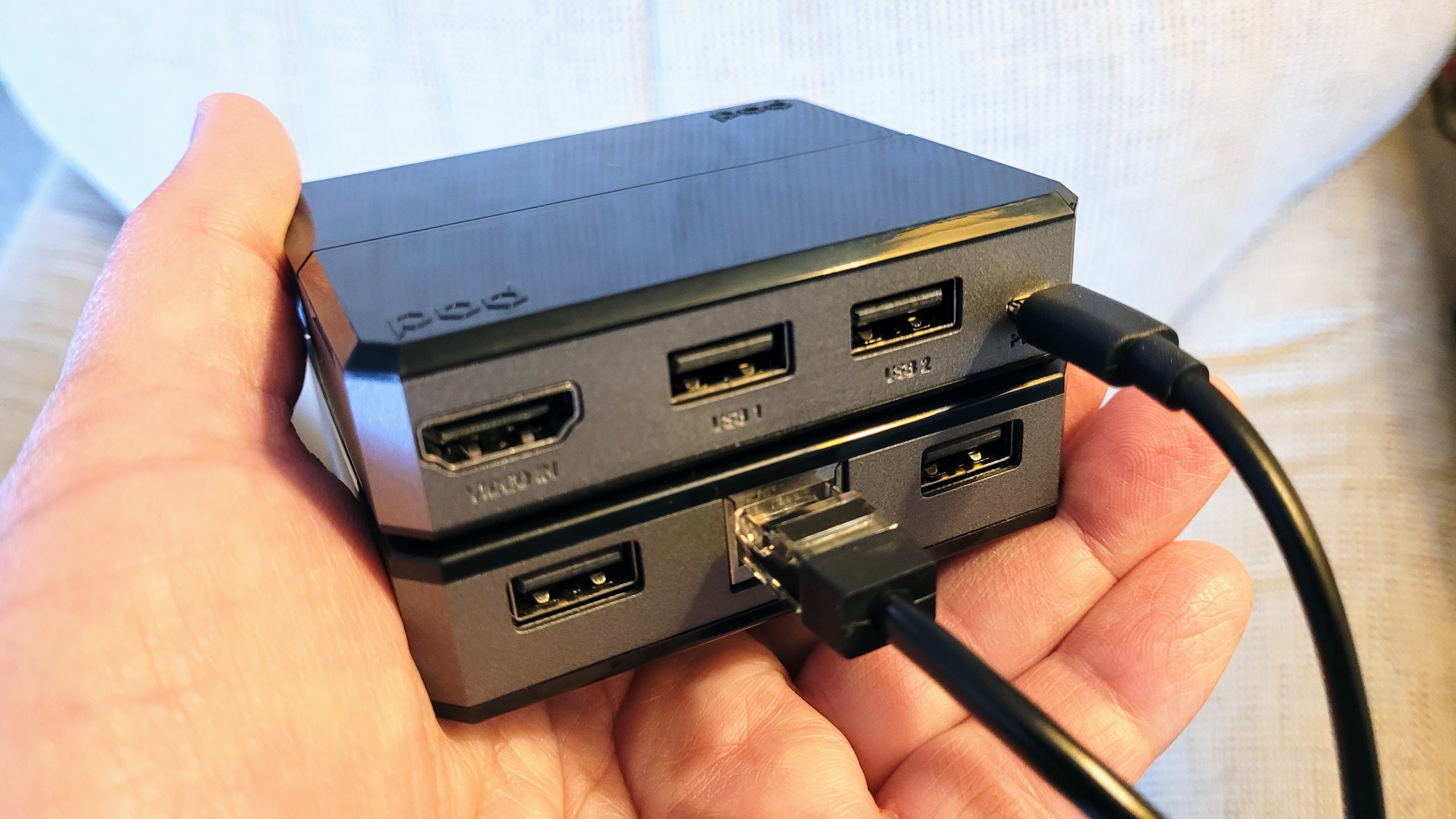
All in all, it makes for a handsome little chunk of a machine. There is also a matching capacitive screen that can go on top, but I haven’t experimented with that yet.
I discovered a few gotchas along the way. First, the caps on the main RPI Zero POD and the USB-HDMI POD simply snap onto the body of the case. If your use case is in a vehicle or you’ll be frequently picking up and moving the case, the Argon POD system might not be your best choice.
Second, you don’t need the header pins soldered to the Raspberry Pi Zero board unless you are going to need them for something, or if you are going to add the capacitive screen. In my implementation, I simply used a Raspberry Pi Zero 2WH board that I had on hand as it already had the headers soldered in.
Third — and I feel this is an oversight by the Argon 40 folks — there is no USB-C port. Especially for powering the device, it seems like there was an opportunity to change the microUSB power port on the USB-HDMI module to a USB-C port. As it is, you’ll either have to use a microUSB power supply or get an adapter if you wish to use a different form factor for powering the Pi.
Fourth, the LED diffuser lens fits loosely in the main POD hole. Whenever I turned the pod over, it would fall out and then rattle around inside the case.
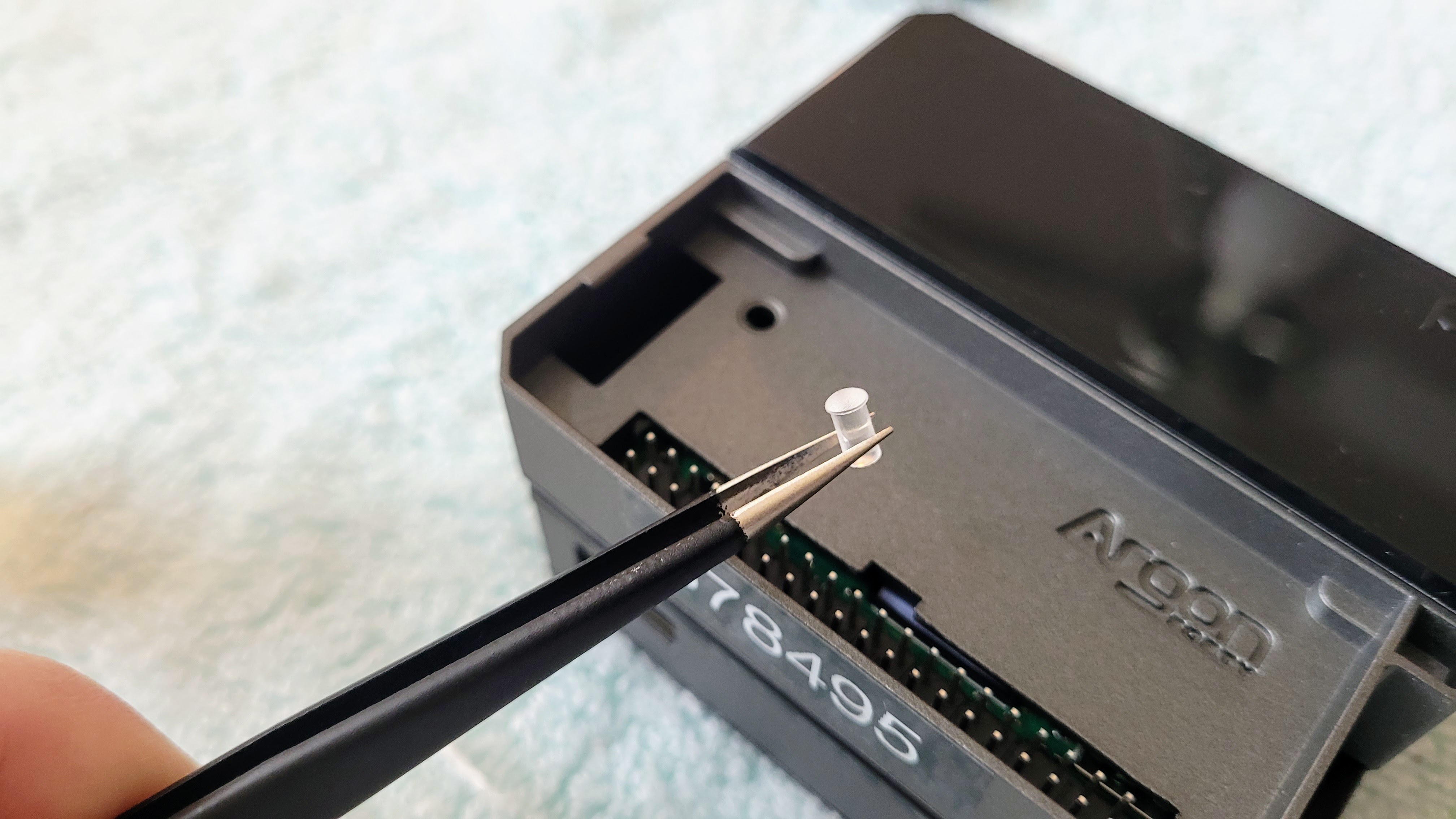
To fix that, I brushed a very small amount of superglue to the lip of the lens, then used my long tweezers to carefully place it in the hole. That worked great:
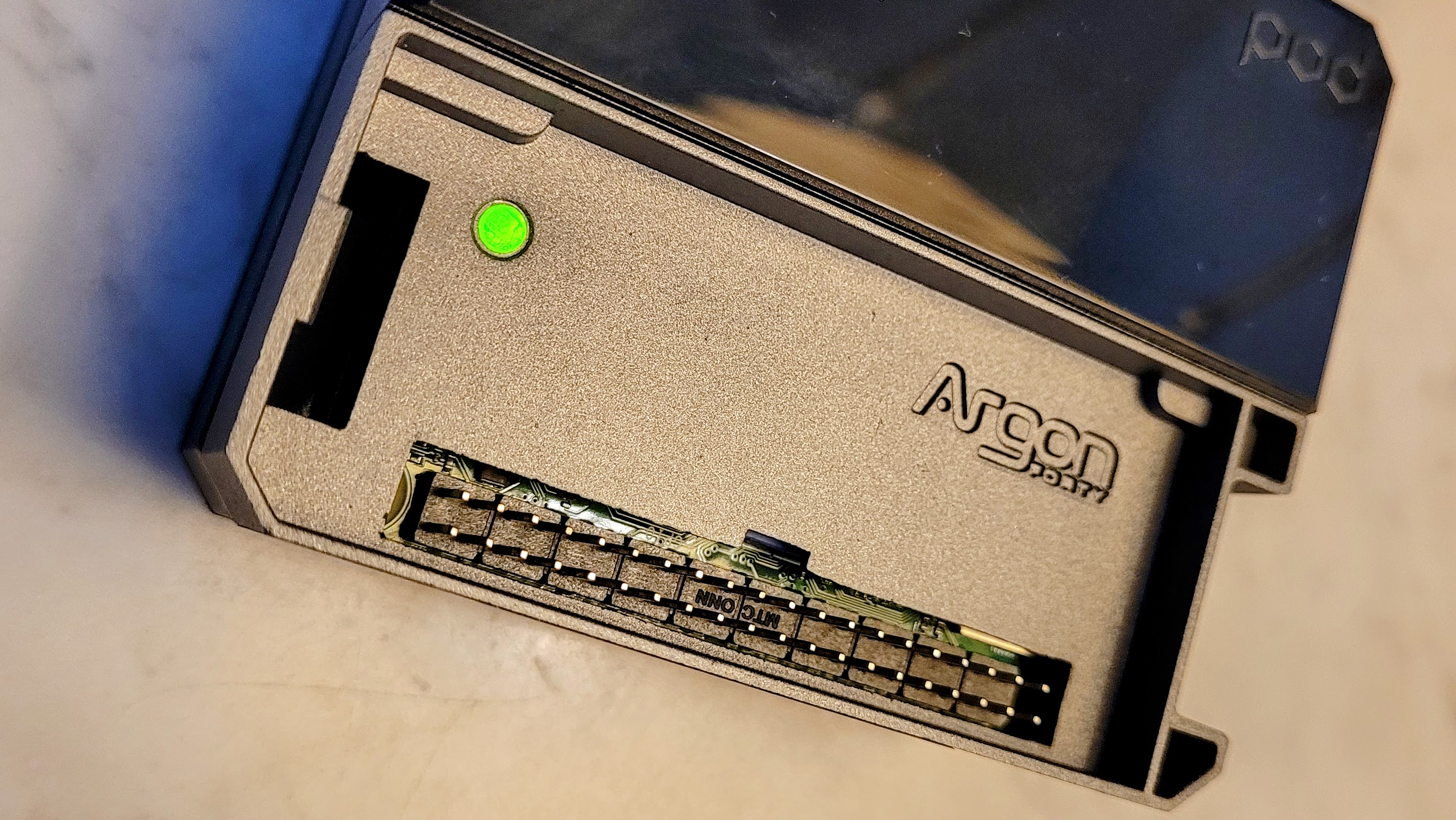
It’s been running for a few days, around the clock, and at idle it is a very normal 106 to 107°F. Under load it hit 120°F. That’s not bad for a passively cooled case.
The easiest place to see the collection of POD modules is on Argon 40’s shop page, at: https://argon40.com/collections/zero-board-kits
Pricing is reasonable: $10 for just the RPi POD, or $20 if you buy the RPi POD and the USB-HDMI module together. Add another $20 if you want even more USB-A ports and a standard Ethernet port.
Coming up
Trying antennas
I’ll be trying various wire and telescoping antennas over the next several weeks. I’d like one I can carry easily in the pickup truck that is quick to set up and performs well on 6 to 20 meters (40 meters would be a bonus).
I’ve pulled my Yaesu FT-450D and Yaesu FT-891 radios out of storage. I just need to find time to get them set up again. Once I have a good antenna setup working at the lake house QTH, I also want to play some with the HFSignals zBitx. I envision the zBitx becoming part of my portable radio kit for use when I’m traveling.
ZUMspot-USB device
In my ongoing quest for easy, small, radio-based devices for digital modes, I’m going to try a ZUMspot-USB. The product documentation says it supports the M17 protocol, but I think that will depend on BlueDV on my Windows laptop. It’s not clear to me that BlueDV supports M17, so that will be a worthwhile test. If it doesn’t work, I can still use the Zumspot-USB for DMR, D-STAR, and Fusion.
MX Linux
Since MX Linux has a version for ARM-based computers, I want to try it on my RPi 4 or RPi 5 machine. In particular, the RPi 5 with MX Linux and an XFCE or KDE desktop environment might work pretty well. I’m curious, so I’ll poke at the operating system to see whether I like it. I’m sure that giving AllStarLink 3 software a try on the MX Linux platform is in the offing, too.
TD H3 Plus radio
I bought a pair of radios: TIDRADIO TD-H3 Plus Ham Radio Handheld,Bluetooth-headphone-connectable,Wireless Programming, Multi-band Walkie Talkies Long Range NOAA Emergency Weather Radios for Survival Gear Hunting Crystal 2 Pack
I did this after reading about a radio amateur who listened to the pilot’s radio traffic while on an airplane, using his Google Pixel earbuds connected to the TD-H3 Plus radio over Bluetooth. Yep, I’d like to try using regular over-the-counter Bluetooth earbuds and headphones with this radio. Might be a game changer, especially as a way to avoid disturbing the family late at night and for us while traveling.
Closing…
Under the miscellaneous category, I realized my installation of AllScan on my AllStar “node in the cloud” at https://kj7t.net was out of date, so I updated it to the latest AllScan release. Significantly, AllScan version 0.96, released on August 30, 2025, made a major change, according to the release notes:
Use of allmon.ini files has now been removed. Node# and AMI Cfgs can now be set on the Cfgs Tab, or if not set there will be read from /etc/asterisk/rpt.conf and manager.conf.
As I write the actual closing, it’s 5:00 am in the hospital. I’ve spent a couple of nights on a hospital recliner that I’m certain was designed to look comfortable but actually works to slowly torture the unfortunate person who sits or sleeps in it. It is the most uncomfortable thing to sleep on, so much so I’ve considered sleeping on the cold, hard floor.
During the day, the hospital is jammed with people bustling about. Everyone is going somewhere and doing something. Things are happening! But at 5:00 am, it’s more like a library: quiet, the lights are turned down, and the atmosphere is more peaceful. The roar of the daily grind is but a faint murmur at this time of the day. To avoid disturbing my wife with my keyboarding (and my groaning as I stretch sore muscles from that blankety-blank recliner) I moved down to the lobby to use one of the simple wooden mini-cubicles that seem just the right height for a laptop computer. With a wire mesh chair, this seems wonderfully comfortable, compared to trying to use the recliner.
Floating in my mind is a rather big thought: the importance of community, of feeling connected to others. When my wife had her major incident on May 8th of this year, a friend I’ve known for 30 years came and sat in the small, rural hospital’s emergency room all morning. I was inside with my wife. Even though he wasn’t allowed in, he sat there, just a few walls away, and kept me company by texting me continuously. I don’t know how he knew I was feeling overwhelmed and adrift, but he made sure I wasn’t alone. Later, when my wife had been packed onto a fixed wing aircraft to be flown to Seattle, he took me to lunch. We sat outside on a sunny day and talked while hawks circled overhead and small, fluffy clouds slowly drifted by. That lunch lasted nearly two hours. What he did for me that day by just being present was something I didn’t know I needed, and I am forever indebted to him for it. There is a takeaway there for me, too: just be present for the people you care about. Being present is enough and it is meaningful.
My relationship with him began innocently enough. I was managing a natural resources conservation district in a remote part of Washington State and he was the new manager of my neighboring district. I waited about a week for him to get settled in his new job then called him to offer whatever I could that might help him succeed. We got together and talked over coffee. Then we did it again. Having the same jobs in similar geographies, we had a lot in common. Those one-on-one conversations became a regular thing that blossomed into a friendship that has lasted for several decades. It turns out that by reaching out and offering help, I ultimately received trust, compassion, learning, and friendship.
As radio amateurs, most of us are familiar with the usual banter heard over the air. Comments about the weather, or the amateur’s station equipment, or their health challenges seem to be the top three topics in those conversations. What are we really doing when we have such QSOs? We are connecting around things that we might have in common.
I used to think those conversations were silly and useless. Now I see them as threads that help connect people, even when they don’t realize that’s what they are doing. When we share what we have in common, we also create opportunities to share what makes each of us unique. Those moments of sharing help create the sense of belonging to something that many of us not only want but need. We are part of a community — a very large, very extended family — comprised of people we are close to, people we are acquainted with, strangers, and yes, those odd family members who don’t seem to fit in.
We are there, in those moments, ostensibly because we want to “play radio.” I think we’re really there because we crave being part of a community of radio amateurs. I often think of my community as the hams in my home amateur radio club. They are the voices I recognize on the radio and we have history together. Other times, I realize that my community is very much larger, primarily because of this newsletter. While we rarely talk with each other, something resonates or people would not continue to subscribe.
I appreciate all comments, criticism, feedback, ideas, tips: anything and everything. While I can’t always help solve a problem (I’m thinking of you, my radio friend in Italy!) I enjoy trying, and in the trying, I learn more about amateur radio, more about the person I’m working with, and more about myself. Connections are created that may seem lightweight and almost meaningless, but they are still threads that help us weave this thing called community. Such connections are important because everyone is going through something.
I was recently introduced to the concept of sonder, which means:
The profound feeling of realizing that everyone, including strangers passing in the street, has a life as complex as one’s own, which they are constantly living despite one’s personal lack of awareness of it.
I think that while our innocent conversations about weather, stations, and medical issues may mask what each of us is going through, they help us form relationships that sometimes deepen to the point we get a glimpse of what someone else is going through. Such moments of deep human connection are a gift and have value that I can’t define, but I know they are important.
I now try to enjoy those silly comments about the weather, what radio your contact is using, and how arthritis is making it hard to do things like summits on the air. The truth is we never know which of those conversations is going to lead to a deeper, more fulfilling relationship. Occasionally, we are gifted a glimpse into what someone else is going through. Such moments help provide context around the things we might be going through and offer moments to build meaningful friendships.
Now it is 6:00 am in the hospital lobby. A Starbucks Coffee place is about 40 feet away. Workers just arrived to get set up for the day. I hear buckets of ice being poured, bumping and clattering of things as they make sure everything is clean, restocked, and ready for customers. They open in just 30 minutes so I think I’ll wait here for a bit, think about people and amateur radio, and then get my first coffee of the day.
73 to all. Remember to touch a radio every day!



Leave a Reply